Showing posts with label iPhone. Show all posts

Aug 19, 2011

iOS 5 Beta 6 Seeded to Developers

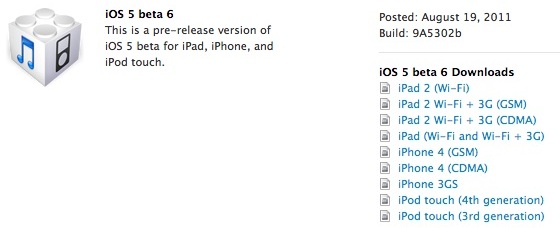
Apple today pushed out the sixth beta version of iOS 5 to developers, marking yet another step in the development process leading up to the public release of iOS 5 later this year. The release, which is labeled as Build 9A5302b, comes nearly two weeks after the surprise Saturday release of the fifth beta version earlier this month. 

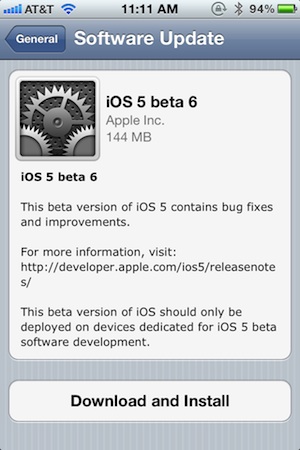
The over-the-air version of iOS 5 beta 6 for the iPhone checks in at 144 MB.

In addition to iOS 5 beta 6, Apple has also released a new beta version of iTunes 10.5 and a new preview version of Xcode 4.2 to support the release. 

Apple is expected to release iOS 5 for existing hardware around the time of the iPhone 5 launch, with rumors for the debut now coalescing around early October. 

Update: Apple has also pushed out iWork for iOS beta 2 and a new "beta 5" of the Apple TV software.

Download iOS 5 beta 6 ipsw iPhone 4, 3GS, iPod touch 4G, 3G, iPad 2, 1


If you found this post useful or interesting, don't forget to press the +1 Button
and leave a comment 

Fix Error 1611 iPhone 4, 3GS, iPod touch 4G, 3G, iPad When Restore 4.3.5 to 4.3.3


Error 1611 is on of the common errors that faces users while restoring their iPhone 4, 3GS, iPod touch 4G, 3G, iPad. When you get error 1611, iTunes shows this message “The iPhone "your device name" could not be restored. An unknown error has occurred (error 1611)". Let's check out how to fix 1611 error after the jump.

How to Fix Error 1611 iPhone 4, 3GS, iPod touch 4G, 3G, iPad 2, 1 after restore 4.3.5 to 4.3.3 :

Error 1611 can be fixed by one of the following trials, so you have to try "method 1", if you still have error 1611 try "method 2" :

Method 1: Reboot your computer and change the USB port.

Method 2: check out the below video guide to fix 1611 error.


Here's full downgrade guide from 4.3.5 to 4.3.3 - Click Here.


If you found this post useful or interesting, don't forget to press the Twitter Button
and leave a comment

Aug 10, 2011

Downgrade 4.3.5 to 4.1 iPhone 3GS


Why to downgrade 4.3.5 to 4.1 iPhone 3GS?

As most of you know that iOS 4.3.5 only have tethered jailbreak which mean that you have to connect your iPhone 3GS to PC every time you reboot it. When you downgrade 4.3.5 to 4.1 iPhone 3GS you will be able to get untethered jailbreak.

Required downloads to downgrade 4.3.5 to 4.1 iPhone 3GS:

Download Ireb4.
Download - Part 1 - Part 2 - iOS 4.1 custom firmware (made by sn0wbreeze)
Download redsn0w 0.9.6 (mirror)
Download iTunes 10.4

How to downgrade 4.3.5 to 4.1 iPhone 3GS :

Step 1: Run Ireb4 , your iPhone 3GS will enter dfu mode.
Step 2: Go to iTunes and flash 4.1 custom firmware ipsw.
Step 3: Jailbreak your iPhone 3GS with Redsn0w 0.9.6b6
Step 4: Unlock your iPhone 3GS with ultrasn0w

Note: We have not had a chance to verify this guide, so if you gonna try it, please feed us back.


If you found this post useful or interesting, don't forget to press the Twitter Button
and leave a comment

Facebook Launches Standalone Messenger App for iPhone and iPad

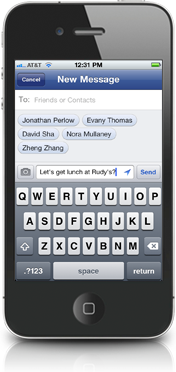
Facebook has released Facebook Messenger, an iPhone app focused on chat and messaging. The dedicated app allows users to send messages directly to friends whether they are on phones or using the Facebook website.

"Messenger is a separate app, so it only takes one click to get to your messages or send a new one. Messages are delivered through notifications and texts, so your friends are more likely to get them right away. 

You can use Messenger to reach all of your friends -- whether they're on Facebook or in your phone contacts. All you have to do is type the person's name."

The app is integrated with the Facebook messaging and chat service and all conversations are archived as part of ongoing conversations on Facebook. The app allows users to share their location and attach photos to conversations. Users aren't restricted to chatting with one friend either, group conversations are easily created as well. 

Facebook Messenger is a direct challenge to other messaging services like BlackBerry Messenger and Apple's forthcoming iMessage. Like those products, Facebook Messenger uses data, not text messages to communicate, which means the service isn't restricted by per-message charges or separate mobile phone charges. 

Facebook Messenger is a universal app available for iPhone, iPad and iPod Touch, free from the App Store.


If you found this post useful or interesting, don't forget to press the Twitter Button
and leave a comment

Aug 9, 2011

Jailbreak iOS 5 beta 5 - iPhone 4, 3GS, iPod Touch 4G, 3G, iPad - Redsn0w 0.9.8b5

As we reported you that Apple has released iOS 5 beta 5. Now iPhone dev-team has released Redsn0w 0.9.8b5 for Mac / Windows to jailbreak iOS 5 beta 5.


Jailbreak iOS 5 beta 5 - Supported Devices :

  • iPod touch 3G
  • iPod touch 4G
  • iPad 1
  • iPhone 3GS
  • iPhone4 (GSM)
  • iPhone4 (CDMA)
Warning: 

"Redsn0w has been updated to 0.9.8b5, adding support for Apple’s new iOS5 beta5 (point it directly at the beta5 IPSW). Please use this only if you’re a jailbreak app developer with a legit Apple dev account, and remember it’s a tethered jailbreak for now!"

Required Downloads:


If you found this post useful or interesting, don't forget to press the Twitter Button
and leave a comment

Jul 29, 2011

GV Integrated Jailbreak Tweak Bakes Google Voice In Your iPhone

Most of rely on Google Voice for our communication needs. However, that complicates for us if we use an iPhone, as the same level of integration that is given on the Android platform, is not present on the iPhone. Now GVIntegrated, a jailbreak tweak integrates Google Voice on the iPhone, like its meant to be.


"Unlike other Google Voice apps, GVIntegrated's primary user interface is the same Phone application you already use. GVIntegrated allows you to specify which calling experience you prefer globally as well as per contact! Simply install, log in through the Settings page, and start calling!
Also allows users to specify default call rules and per-contact rules!"

No new icons are added to the Home screen of your iPhone. You can configure the various options of GVIntegrated from the Settings.app.

Obviously, to install GVIntegrated, you need to have a jailbroken device. Follow our tutorial on how to jailbreak iPhone using redsn0w.

GVIntegrated is available now in Cydia for a nominal charge of $1.99.


If you found this post useful or interesting, don't forget to press the Twitter Button
and leave a comment

Jul 28, 2011

Save iOS 4.3.5 SHSH iPhone, iPad and iPod touch Blobs and Update iPhone 4 Baseband

TinyUmbrella for both Windows and Mac has been updated to version 5.00.07 to support save iOS 4.3.5 SHSH blobs for iPhone, iPod touch and iPad. This will help you to save SHSH certificates for iOS 4.3.5 as well as update iPhone 4 baseband. This is the first time updating iPhone 4 baseband functionality has been enabled in TinyUmbrella.


The iPhone 4 baseband update option should only be used by those who know what they are doing. If you are on a software unlocked iPhone, you should definitely not play with this setting. Anyhow, before you do proceed, take notice of the following:

  1. First, the version you WANT to restore to and the version Apple is currently signing must BOTH have the same baseband. This is important or else the baseband update will not work and you will get a 10xx error and need to use fixrecovery. (Works for iPhone 4 - will not work for iPad 2)
  2. Second, you need to realize that checking the box WILL UPDATE YOUR BASEBAND.
You have to manually select update iPhone 4 baseband option whenever you start TinyUmbrella. It will never be on by default.

As a reminder, to save your SHSH blobs, simply connect your iDevice via USB to your computer, launch TinyUmbrella, and click the “Save SHSH” button.

Download TinyUmbrella v5.00.07 for Windows
Download TinyUmbrella v5.00.07 for Mac


If you found this post useful, don't forget to press the Twitter Button
and leave a comment

Jul 27, 2011

Unlock 4.3.5 iPhone 4 Gevey Sim Ultra

Unlock 4.3.5 iPhone 4 with Gevey SIM Ultra is possible. As we reported you that Apple has released iOS 4.3.5 for iDevices yesterday to fix some security issues found in latest firmwares. For who don't know that Gevey Sim ultra can unlock 4.3.5 iPhone 4 without calling 112.


One of our readers has successfully unlock 4.3.5 iPhone 4 with Gevey SIM Ultra. For ultrasn0w unlockers, iPhone dev-team has not updated ultrasn0w to unlock 4.3.5 iPhone 4, so we advice who rely on ultrasn0w unlock to stay away from iOS 4.3.5 update.

If you want to buy Gevey SIM, we recommend to buy it from Amazon for secured shipping and delivery - Click Here.

For iOS 4.3.5 jailbreak - 
Click Here.

If you found this post useful, don't forget to press the Twitter Button
and leave a comment

Jul 24, 2011

Unlock iPhone 4 4.3.4 Gevey SIM Ultra

Unlock iPhone 4 on 4.3.4 with Gevey SIM Ultra. As most of you know that iOS 4.3.4 released by Apple to fix vulnerability found by JailbreakMe 3.0.

Some of our readers has successfully unlock iPhone 4 on 4.3.4 firmware using Gevey SIM ultra. For who don't know Gevey SIM Ultra unlock iPhone 4 on 4.3.4 without calling 112.

Buy Gevey SIM Ultra to unlock iPhone 4 Click Here.

If you found this post useful, don't forget to press the Twitter Button

Jul 10, 2011

Swype Beta 2 Released With Awesome Changes for iPad, iPhone, iPod

A famous tweak for iDevices sounding in the air for last two days, Swype has been updated. The new update should be installed to fix a number of bugs and to meet the tweak just to work exactly as is in Android phones.


The new version of Swype BETA2 makes it look likes just as it is in android phone. The first version of Swype was lacking blue trace line that made its usage a bit difficult. When the user makes a move from one letter to another letter, it makes an edge of blue trace line and assures user that he typing correctly.

If you have already installed Swype, then you can easily upgrade it to Beta2, and if you are willing to try this tweak then you can install it from the following repository wynd.x10.mx/repo.

If you found this post useful, dont forget to click the +1 button

Jul 2, 2011

Unlock iPhone 4 iOS 5 Beta 2 - Gevey SIM

You might have used Gevey SIM for unlocking your iPhone 4 and also observed that Apple has obstructed the exploit in iOS 5 beta 2.


In the following method we are gonna show you how you can unlock your iphone 4 runnung iOS 5 beta 2 with Gevey SIM….

But this method may take lot of time and also ensure that the Gevey SIM is not gonna activated until you have finished step 4.

What you require:
  •  An iPhone 4
  • The iOS 5 Beta 2 .IPSW file which is available in the Apple Developer Portal
  • The latest version of Sn0wbreeze
  •  A Gevey SIM from ApplenBerry

Follow these steps:

Step 1: Ensure to relegate your iPhone 4 back to 4.3.3.You don’t need to use TinyUmbrella because Apple is still signing this firmware.It will also reduce your baseband to 04.10.01 and Gevey SIM is gonna work.When you hit restore,ensure to hold the SHIFT key and then select the 4.3.3 IPSW file.

Step 2: By using Sn0wbeeze ,Draw a custom iOS 5 beta 2 restore file.Restore it to custom restore file.

Step 3: Keep in mind not to turn on your iPhone with the servers of Apple.You will need to avoid it.

Step 4: You must have to switch off your iPhone.Then,insert your Gevey SIM into the SIM card slot on your iPhone.

Step 5: After you have inserted your Gevey SIM into your iPhone you will need to switch it on.When it turns on,you need to wait some seconds until the signal bar appears.Then allow Gevey SIM screen to accept and open the application of phone. Call 112 and keep waiting for 2 seconds then hang up the call.

Step 6: Go to the settings app and switch airplane mode on.You have to wait 30 seconds till the indication of “No SIM card installed” appears.Select ok then switch airplane mode off.

If you found this post useful, dont forget to click the +1 button down ()